How to use Chppr
A practical map for slicing audio, playing pads, making patterns, arranging a beat, and choosing the output you need.
- Add audio
- Slice a region
- Play pads
- Export WAV
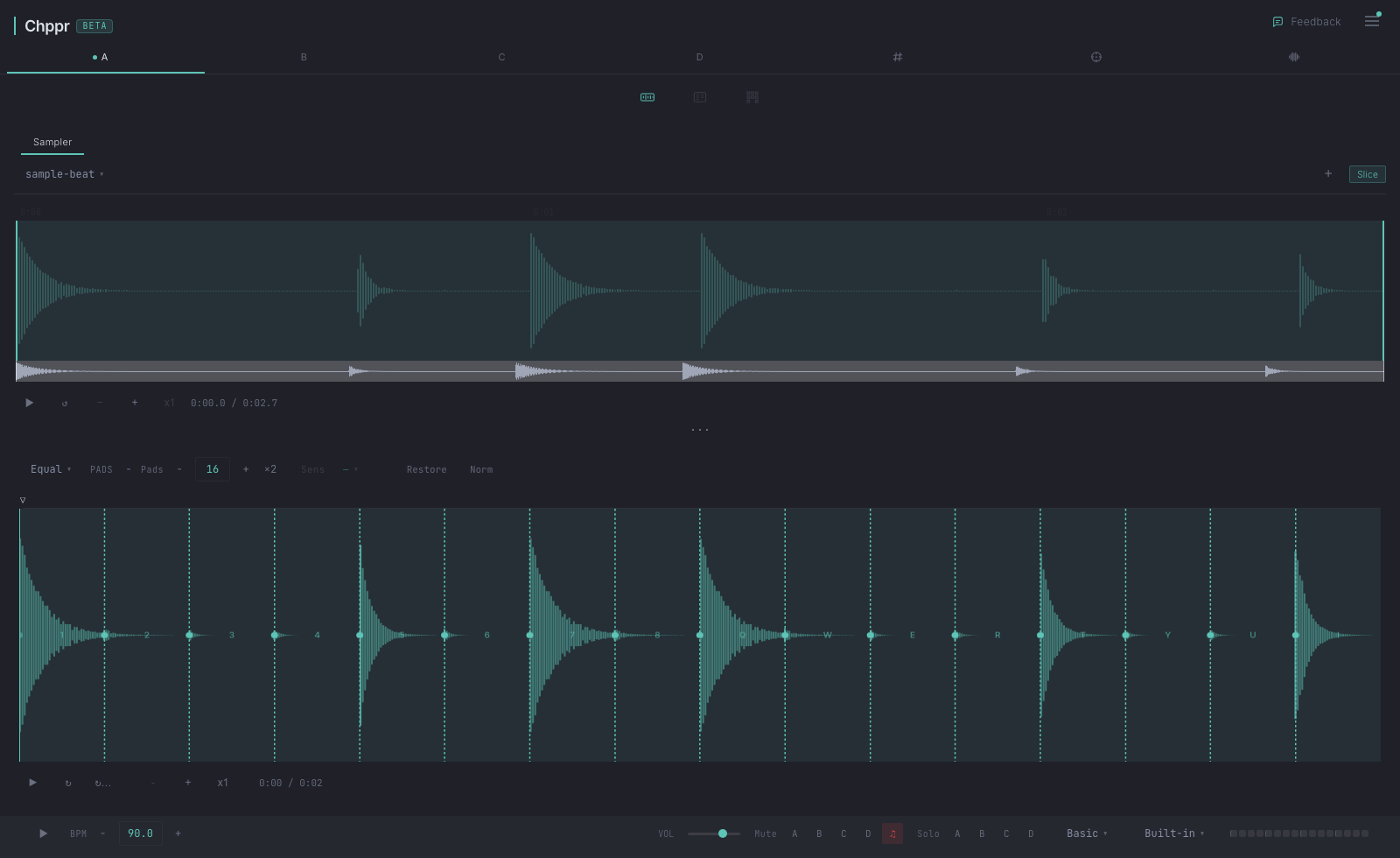
Quick start
- Add audio. Drop a file, record audio, capture browser audio, or load the demo sample.
- Choose a source region. In Beat, open Sound → Source, then find the drum break, vocal phrase, melody loop, or texture you want to test.
- Press Slice. The selected region becomes chops on the active track, then Chppr moves to Sound → Slices for editing.
- Open Play. Check whether the pads feel like an instrument before spending more time on the idea.
- Open Sequence or FX. Build a Pattern, shape the track with effects, then choose an export, download a project file, or publish a Beat Card.
What sounds work well in Chppr?
Chppr is easiest to learn with sounds that have clear starts: drum breaks, melody loops, vocal phrases, one-shots, and texture recordings. Long songs can work, but a short loop or phrase is faster to judge.
Screen map
The easiest way to understand Chppr is to separate the app into three ideas: sources, tracks, and the Footer workflow.
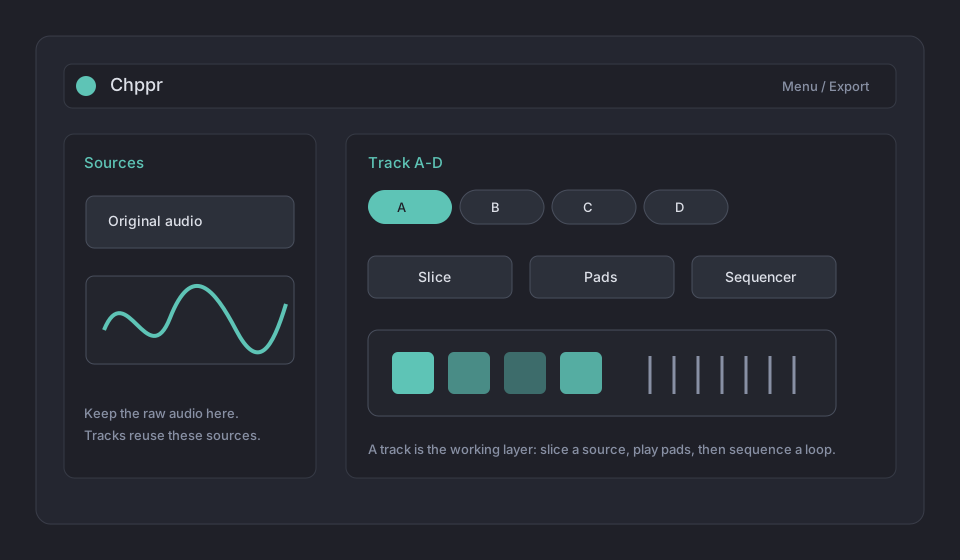
Track A-D
Use tracks as separate working layers. A common setup is drums on A, vocal chops on B, melody on C, and a texture or alternate idea on D.
Sound / Play / Sequence / FX
Open Beat in the Footer. Use Sound → Source to slice a region, Sound → Slices to edit boundaries, normalize, or reslice, Play for pads, Sequence for Patterns, and FX for track effects. If Play or Sequence is empty, slice the active track first.
Tracks and sources
This is the mental model that prevents most first-use confusion.
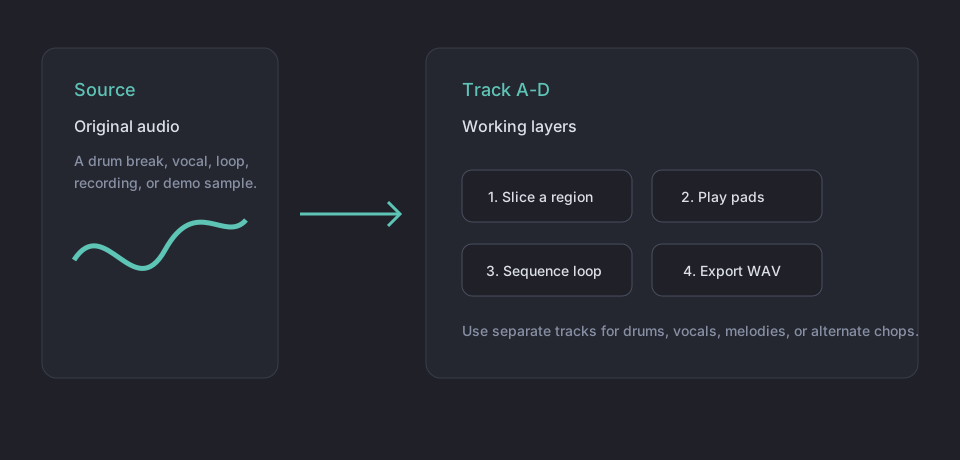
- Source
- The original audio you add to Chppr. It can be an uploaded file, a recording, captured browser audio, or the demo sample.
- Track
- A working layer. Each track stores its own source selection, sliced region, pads, pattern, pitch, and playback settings.
- Track A-D
- Four layers for sketching a beat. You can keep one track simple, then use another track for a different source or a different chop idea.
- Sources view
- The source icon opens a list of loaded sources. It is useful when you want to add, preview, remove, or check which tracks use a source.
Sound, Play, and Sequence
These three areas are one workflow, not separate features. Slice first, play the result, then arrange a pattern if the chops are working.
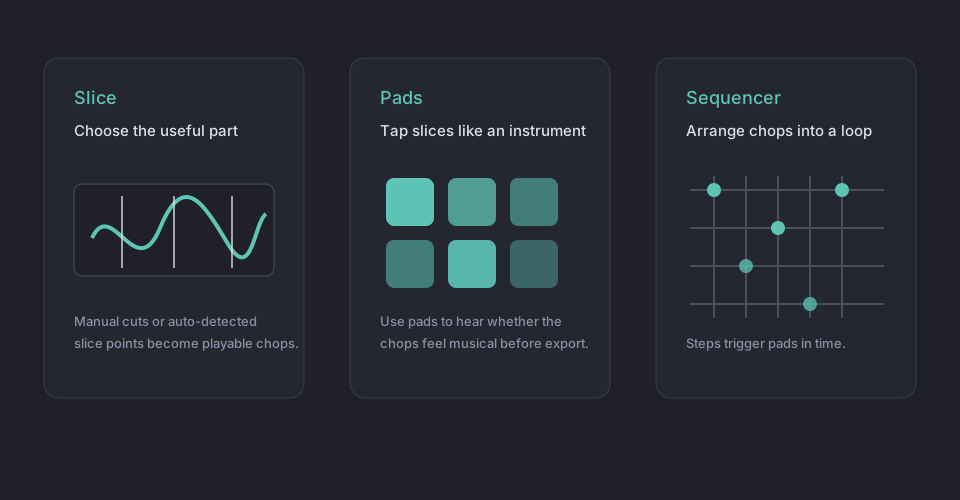
How to slice
- Pick the active track, open Beat, then choose Sound → Source.
- Choose a source from the source selector.
- Select the useful region on the waveform.
- Press Slice to assign the region to the active track. Chppr then opens Sound → Slices.
- After slicing, use Sound → Slices to edit boundaries, normalize, or reslice that track.
How to play pads
After slicing, open Beat in the Footer and choose Play. Each pad triggers a slice from the active track. This is where you check whether the sample feels good under your fingers before sequencing it.
How to sequence
Open Beat in the Footer, then choose Sequence after a track has slices. Add steps to trigger pads over time. Use this to sketch a Pattern, then choose an available export when you are ready to keep it. Open FX when you want to shape the track with effects.
Using multiple tracks
Tracks do not have to mean finished song stems. They are lightweight scratch layers. You can use them for different roles while you test an idea.
- Track A: drum break or main groove.
- Track B: vocal chop or short hook.
- Track C: melody loop, texture, or field recording.
- Track D: alternate chop, extra percussion, or a quick comparison idea.
If a track has no slices, Play and Sequence will be empty. Open Beat, choose Sound → Source, and create slices for that active track. Use Sound → Slices after that to edit them.
Save, export, and share
Chppr has several outputs because different moments need different files.
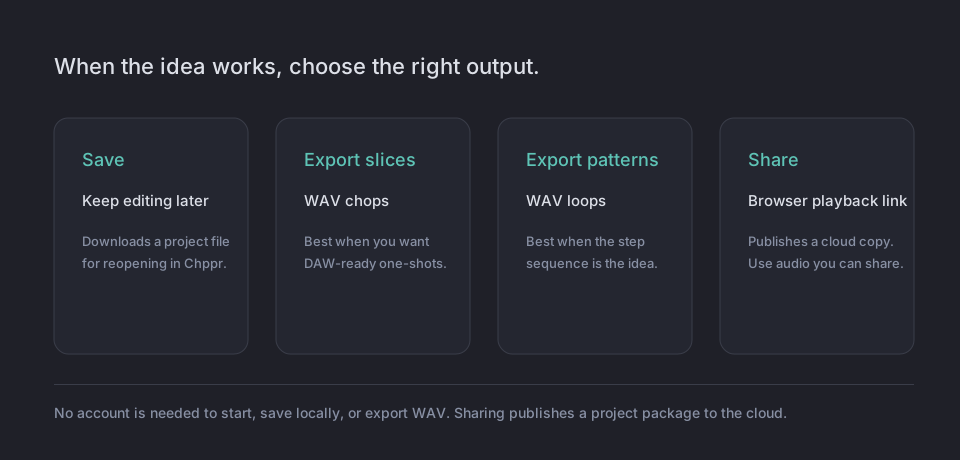
- Save project
- Downloads a local .chppr project file so you can reopen the session later. This does not require an account.
- Export slices
- Downloads the chopped pad sounds as WAV files. Use this when you want to bring one-shots into Ableton, FL Studio, Logic, or another DAW.
- Export patterns
- Downloads sequenced loops as WAV files. Use this when the pattern is the part you want to keep.
- Loop mix / Arrangement / Press Recording
- These cards are always visible and become available when ready: Loop mix exports the current Pattern cycle, Arrangement exports a completed BeatArc arrangement, and Press Recording exports the selected Press performance.
- Beat Card
- Publishes a browser-playable card by packaging the project and saving it to cloud storage. Publishing can start an anonymous session and is subject to anonymous publishing limits. Only publish audio you have the right to distribute.
The Export tab always shows five cards: Loop mix, Arrangement, Press Recording, Export patterns, and Export slices. Cards become available when their prerequisites exist. An unavailable card itself shows only its label and description; select it to open a dialog with the reason and next action: build a Pattern, create an arrangement, record in Press, or slice a Sample. Local audio is processed in your browser while you work. Audio is packaged and uploaded only when you publish a Beat Card. Remote and YouTube sources cannot currently be packaged; if publication fails, try an uploaded file or the demo sample.
BeatArc, Key Sync, and Sources
After the basic slice-to-pad flow makes sense, these views help you shape or manage the idea.
BeatArc
Arrange has two visible tabs: BeatArc shapes Track Patterns into an arrangement, while Press is where you launch Patterns from Tracks and record a performance.
Key Sync
Key Sync analyzes track keys, lets you choose a master key, exclude tracks from sync, and adjust each track's pitch shift when you want samples to sit together more musically.
Sources
Use Sources when you want to manage the original audio slots, add another source, preview a source, or remove material from the project.
Menu
The Menu is where you start a new project, open a project file, or download a project file. Use the Footer Export and Share tabs for outputs and Beat Cards.
Mobile guide
Chppr works best when you treat mobile as a quick sketch surface. Add audio, use the Footer to open Beat, then use Sound → Source for a small region and Slice it. Use Sound → Slices to edit it, Play to test pads, Sequence for a Pattern, or FX to shape the track.
For a focused phone and tablet overview, read the mobile sample chopper for phone and tablet page.
- Use shorter regions first. Long files are harder to manage on a small screen.
- If you cannot see pads or the sequencer, make sure the active track has slices.
- Use Save project before leaving if you want to keep editing later.
- If you need detailed arrangement, export WAV and finish the idea in a DAW.
Troubleshooting
I opened Chppr. What should I do first?
Add audio first. Drop a file, record audio, capture browser audio, or load the demo sample. Then choose a region and press Slice.
Where are the pads and sequencer?
Open Beat in the Footer. Use Sound → Source to slice a region, Sound → Slices to edit boundaries, normalize, or reslice, Play for pads, Sequence for Patterns, and FX for track effects.
What is the difference between a source and a track?
A source is original audio. A track is the layer where you slice that audio, play pads, sequence a loop, and export results.
Why is export empty or unavailable?
The Export tab always shows five cards: Loop mix, Arrangement, Press Recording, Export patterns, and Export slices. Cards become available when their prerequisites exist. Select an unavailable card to open a dialog with its reason and next action: build a Pattern, create an arrangement, record in Press, or slice a Sample.
Do I need an account?
No account is needed to start, download a local .chppr project file, or export. Publishing a Beat Card starts an anonymous session when needed and is subject to anonymous publishing limits.
Are my audio files uploaded?
Local files are processed in your browser while you work. Audio is packaged and uploaded only when you publish a Beat Card. Remote and YouTube sources cannot currently be packaged for publication.
Why did sharing fail?
Publishing can fail if a project uses remote or YouTube audio that cannot be bundled into the Beat Card package. Try an uploaded file or the demo sample, and only publish audio you have the right to distribute.
Which export should I use?
The Export tab always shows five cards: Loop mix, Arrangement, Press Recording, Export patterns, and Export slices. Cards become available when their prerequisites exist. Select an unavailable card to open a dialog with its reason and next action: build a Pattern, create an arrangement, record in Press, or slice a Sample.
Start with the sample project, then come back to this guide if anything feels hidden.
Try with demo sampleOpen Chppr